
Tasks and reminders
You change tasks in the Tasks tab of the setup screens. Reach them with Configure in the carer portal, or on site by joining the device’s Wi-Fi (see Plans). The first time, the Setup checklist on the Home tab points out what is still missing.
Daily tasks
Section titled “Daily tasks”There are eight task slots, matching the eight paddle buttons. Task 1 is the top row and button 1.
For each task:
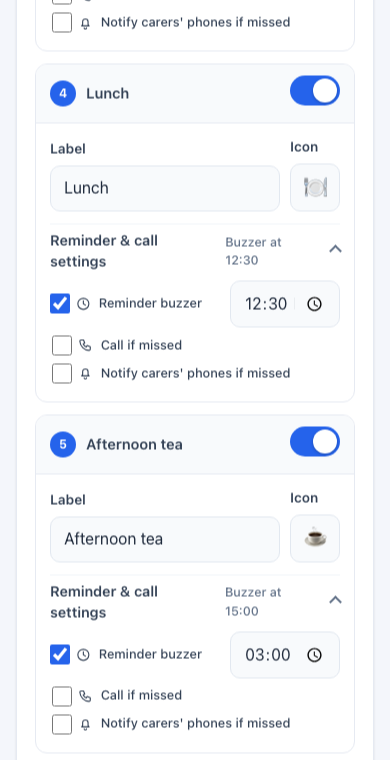
| Setting | What it does |
|---|---|
| On / off switch | A task that is off does not appear on the screen, and its button does nothing. |
| Label | The name on the screen (up to 31 letters). Short names read best. Long ones are trimmed to fit, so put the important word first. |
| Icon | A picture to help you tell the tasks apart in the portal. It is not drawn on the e-paper screen. |
| Reminder buzzer | Switch on and choose a time. Shown at the right of the task on the screen. |
| Call if missed | If the task is still not ticked a set number of minutes after the reminder (1 to 60, starts at 15), JeanScreen phones the resident. Needs the resident’s phone number and Wi-Fi. |
| Notify carers’ phones if missed | If the task is still not ticked after a set number of minutes (1 to 120, starts at 15), carers’ phones get an alert. Needs no phone number. |
Good task names: Morning pills, Drink water, Lunch, Walk, Call Sam, Lock the door.
What happens at reminder time
Section titled “What happens at reminder time”- At the reminder time, if the task is not yet ticked, the device reminds the resident: it speaks the reminder in the voice you chose if the home Wi-Fi is working, and otherwise plays a chime.
- It reminds once, not repeatedly.
- If Call if missed is on and the task is still not ticked after the wait, the device places a call to the resident’s phone. The call says a task has not been completed, and offers press 1 to mark it as complete.
- If Notify carers’ phones is on, carers get an alert after their wait.
If the device was off at the reminder time, it catches up when it starts, but not if the time passed too long ago, so nobody gets a call late at night.
When you change a reminder to a later time, it will fire at the new time.
Schedule
Section titled “Schedule”- Daily reset time (starts at 07:00): all ticks are cleared, yesterday’s report is sent, and the screen does a full refresh.
- Wellbeing check time (starts at 12:00): see Alerts and reports. If no task has been ticked by then, your contacts are told.
- Dosette box reminder (optional): a weekly “Refill dosette box” line on the screen on the day you choose, with an optional text or call to carers.
Clock, date and temperature
Section titled “Clock, date and temperature”In the Display tab: clock style (written, 12-hour, 24-hour), date style, how reminder times are shown next to tasks, whether to show temperature and humidity, and °C or °F.
Resident
Section titled “Resident”In the Resident tab: the resident’s name (it names the device and is used in reminders and messages), their phone number (called when a task is missed, if you turned that on) and an optional address. The address is stored with the settings but is not currently used in any alert or message.
Phone numbers need the country code, for example +16045550100.
Testing your changes
Section titled “Testing your changes”- Set a reminder two minutes ahead and watch it fire.
- Press a task button and check the strike-through. Press again to undo.
- Clear today’s task completions (Device tab) un-ticks everything without waiting for tomorrow.