
What's in the box
The device
Section titled “The device”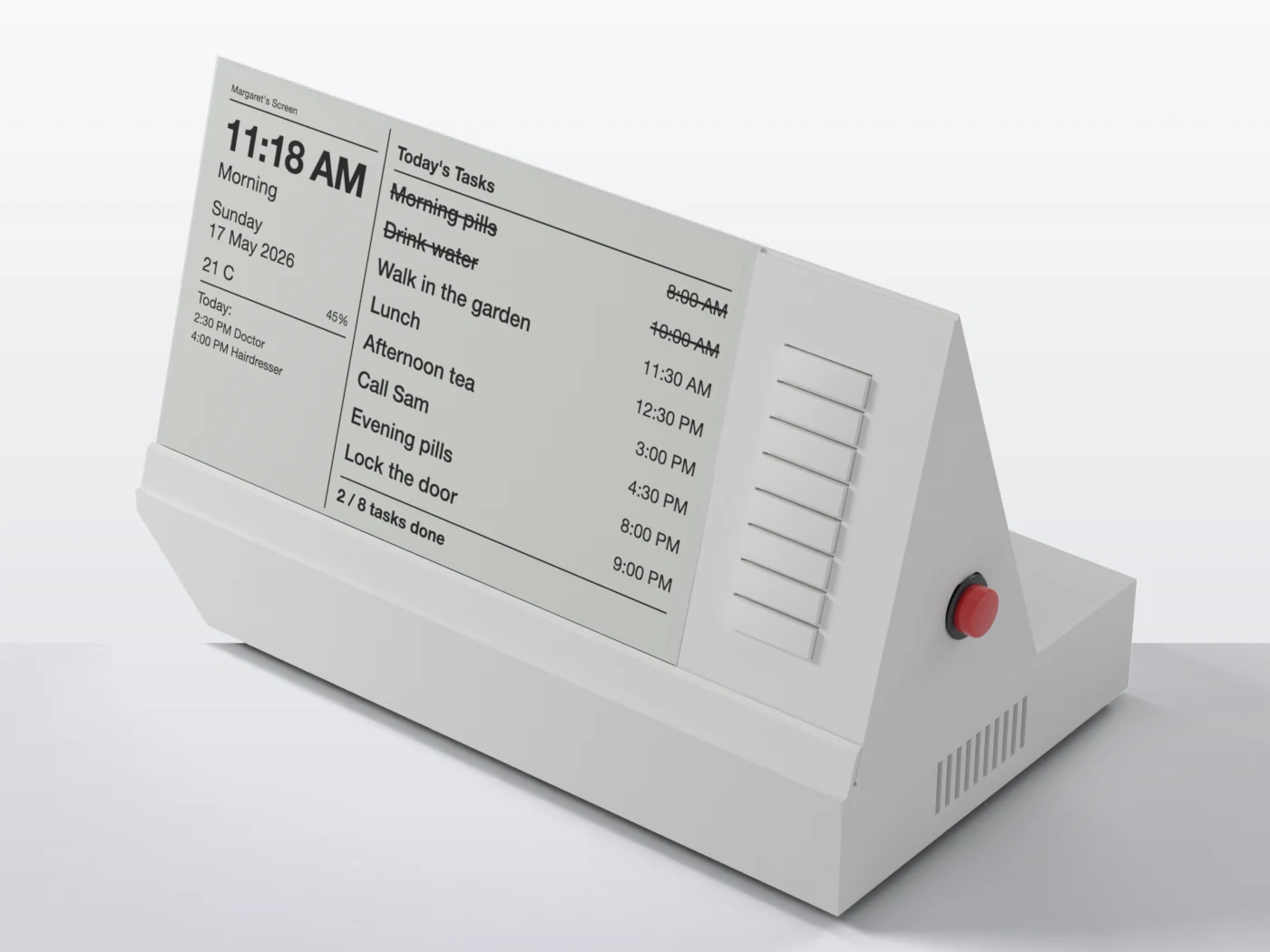
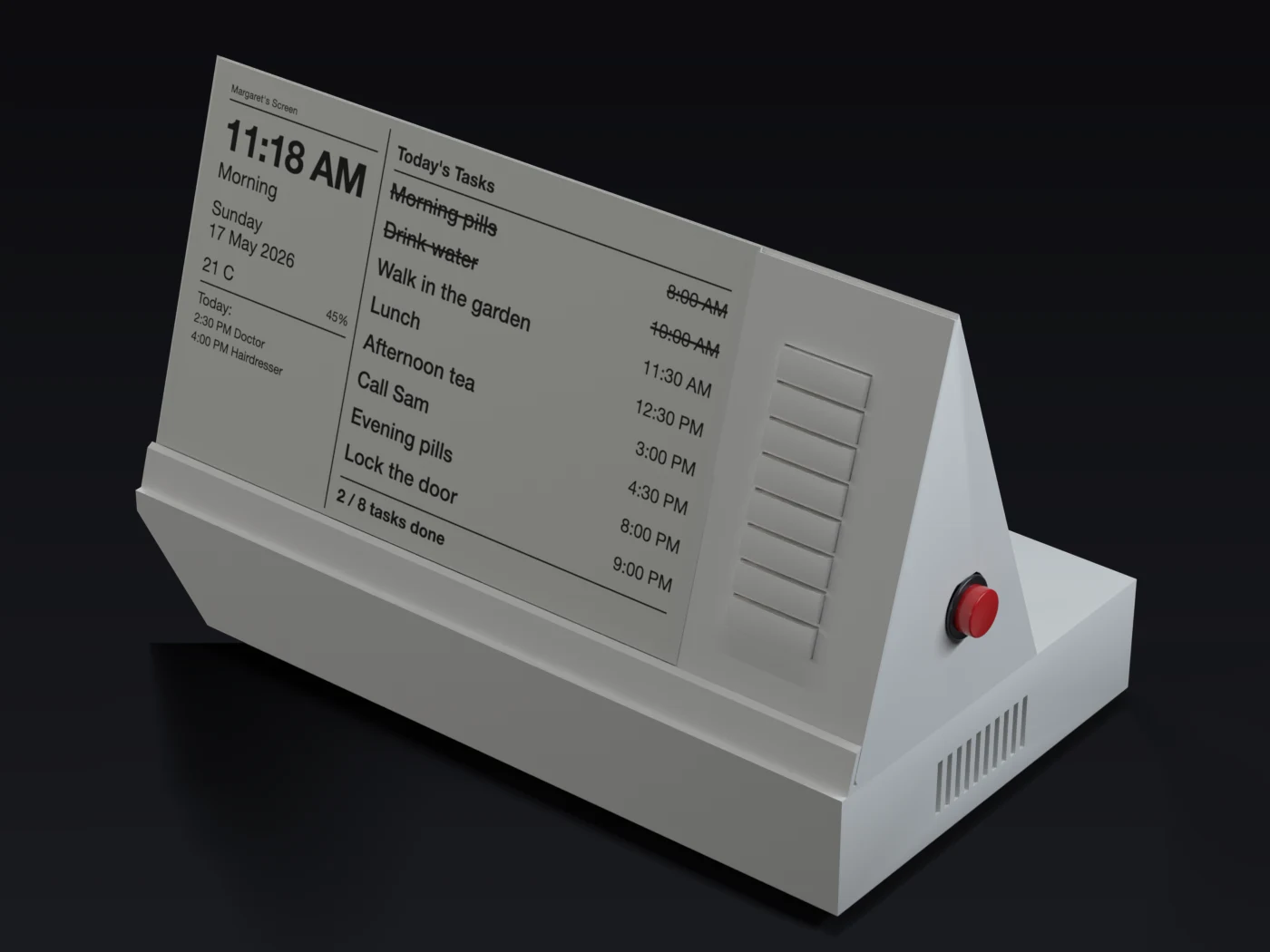
| Part | What it does |
|---|---|
| E-paper screen, 7.5 inch | Shows the time, date, temperature, today’s events and tasks. It looks like printed paper: no glare, no backlight, and it keeps showing the last picture even if the power is cut. |
| Eight task buttons (paddles), numbered 1 to 8 | One beside each task row. Press to tick a task done, press again to undo. |
| Red Call Carer button | Hold for about one and a half seconds to ask family to call. A light on it is lit when the button is ready, and flashes until someone replies. |
| Speaker | Plays the soft chime, reminder sounds and spoken reminders. |
| Temperature and humidity sensor | Shows the room temperature and humidity, and can warn you if the room gets too hot or cold. |
| Clock chip | Keeps the time between internet updates. The time is set from your phone during setup and checked against the internet when connected. |
| Wi-Fi | Connects to your home Wi-Fi. It also makes its own small Wi-Fi network, used only for setup and for changing things on site. |
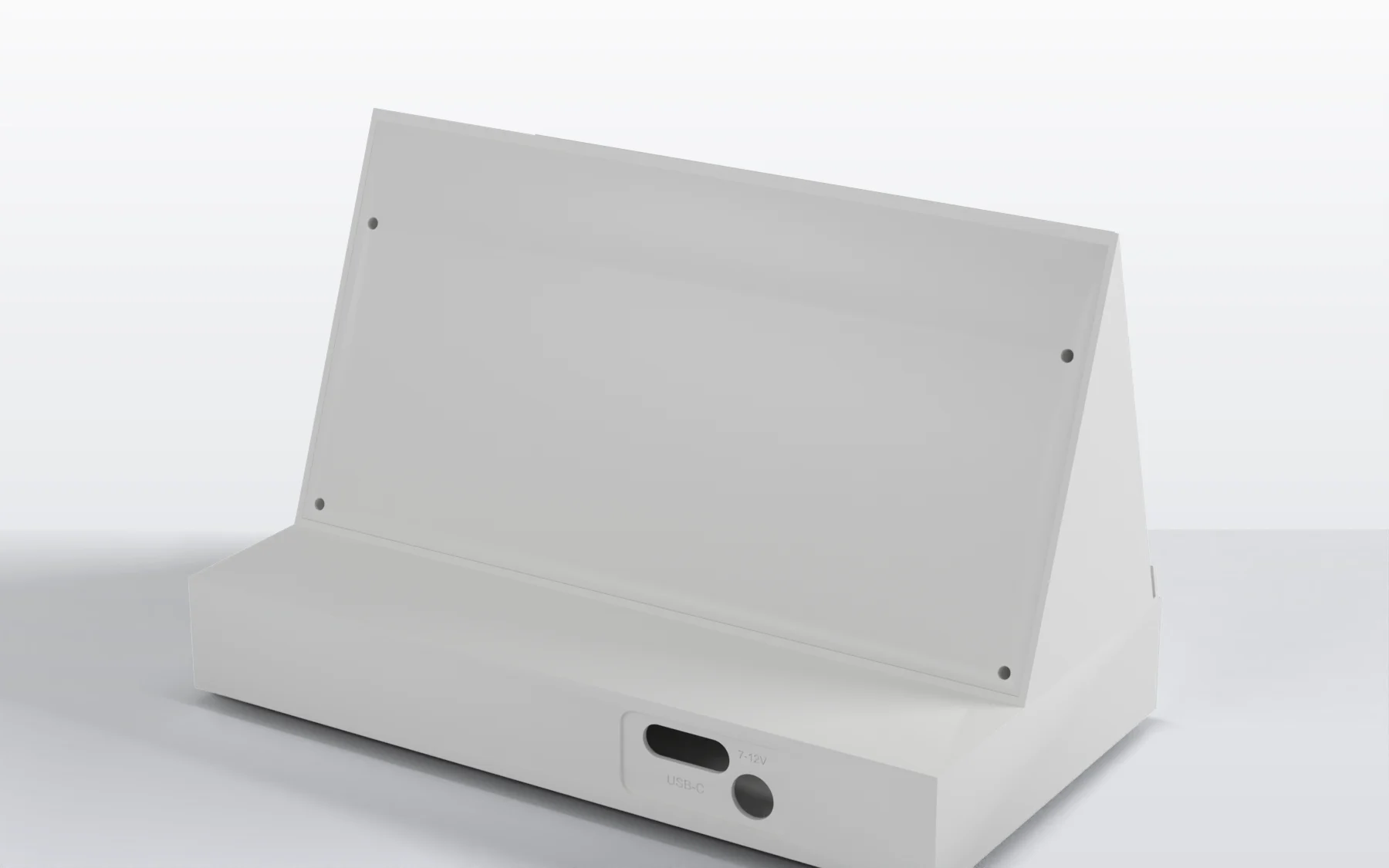
| Label on the back | Shows the device ID, which you need to add the device to the carer portal. |
There is no camera, and no microphone is fitted.
What you need
Section titled “What you need”- A power outlet and the power adapter.
- A phone (iPhone or Android) to do the setup. You, the carer, use it. The person living with JeanScreen does not need one.
- A home Wi-Fi network and its password. JeanScreen connects to normal 2.4 GHz Wi-Fi, which nearly all home routers offer.
- For the Cloud plan: an email address for your carer portal account.
Where to put it
Section titled “Where to put it”- On a table or shelf at a comfortable height, where the person sits most. Put it near a power outlet and within reach of the buttons.
- Away from bright direct sun, radiators and heat vents, so the temperature reading is true.
- Within range of your home Wi-Fi. If your phone gets a good signal there, so will JeanScreen.
Next: First setup.