
The carer portal
The carer portal is a website that works like an app on your phone. It is where you add your device, change tasks and settings from anywhere, and receive alerts. It is part of the Cloud plan (see Plans).
1. Create an account
Section titled “1. Create an account”- Open the portal and choose Create account.
- Type your name, your email address, and a password of at least 8 characters. (This is your portal password: it is separate from the password you chose on the device’s own setup page.)
- The portal says it is free to try for 14 days. After sign-up a banner shows the days left, with a View plans button.
Next time, use Sign in.
2. Add your device
Section titled “2. Add your device”You need two things from the device. Hold buttons 7 and 8 together for 3 seconds: the screen shows the device ID and the 8-digit pairing code for 30 seconds. (The device ID is also on the label on the back.)
- In the portal choose Add device.
- Type the device ID and the pairing code. Spaces in the code do not matter.
- Give it a friendly name, such as “Mum’s JeanScreen”.
- Choose Add Device. The portal says Device added! and offers Configure this device now.
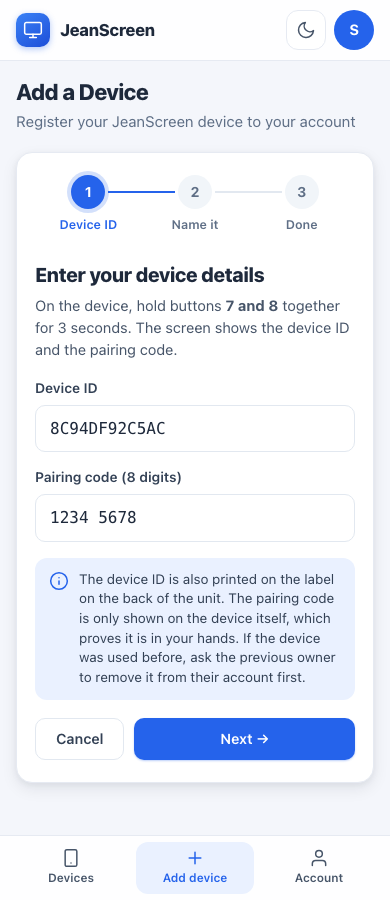
The pairing code proves the device is in your hands. It is shown only on the device itself, so someone who only knows the device ID cannot add it.
| Message | What it means |
|---|---|
| “The device ID or pairing code is not right.” | Re-read both on the device (hold 7 + 8 again). |
| “This device is already on your account.” | Nothing to do. |
| “This device belongs to another account.” | The previous owner can Remove it in their portal, or you can do a new-owner reset on the device, then add it. |
| “Too many wrong codes for this device. Try again in an hour.” | Wait an hour, then try again with the right code. |
Devices that have not yet been updated to the current software (older ones) cannot be added until they update. See Updates.
3. Your devices
Section titled “3. Your devices”The home page lists your devices with their status and today’s tasks. Each card has:
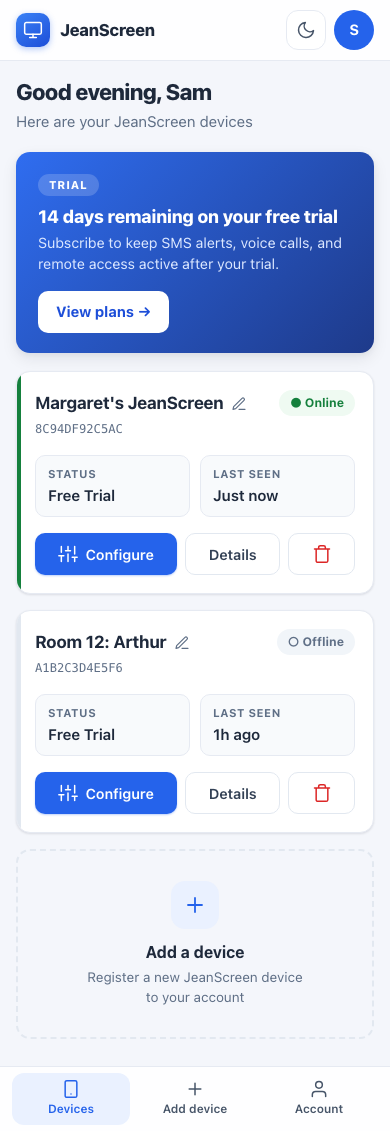
- Configure: opens the full setup screens for that device (the same ones you see locally), sent securely through the cloud. See Tasks and reminders. Changes reach the device within about half a minute.
- Details: whether it is online, when it was last seen, the plan, how many Call Carer presses it has used this year against its free allowance, and Settings backups (Cloud plan): every saved version, with Preview and Restore.
- Rename (the pencil) and Remove (the bin). See New resident.
Restore settings from your backup? If a device on your account comes online with blank settings (after a reset, or a replacement device), the portal asks this once and shows what would come back: the screen name, the resident, the tasks and the contacts. Tap Restore to put them back, or Not now. Nothing is restored unless you tap Restore, and Wi-Fi and passwords are never changed. A replacement device sent by support is linked to your account for you, and the portal offers the old device’s backup.
Under Configure you will also see On-site access, which explains how to reach the device directly: join its own Wi-Fi and open http://192.168.4.1, or use its address on your home network. The portal also has a light/dark switch and an Account page for billing and your profile.
4. Put the portal on your phone
Section titled “4. Put the portal on your phone”Installing it gives you an app icon, full-screen use, and (on iPhone) is needed for alerts.
- Open the portal in Safari.
- Tap the Share button.
- Tap Add to Home Screen, then Add.
- Open JeanScreen from your Home Screen.
- Open the portal in Chrome.
- Tap Install app when offered, or open the menu and choose Add to Home screen.
- Open JeanScreen from your home screen.
On a computer the portal shows a QR code. Scan it with your phone’s camera and follow the iPhone or Android steps.
5. Alerts on this phone
Section titled “5. Alerts on this phone”On the portal home page, find the card Alerts on this phone.
- On an iPhone, first add the portal to your Home Screen (step 4) and open it from there. Until then the card says so.
- Tap Turn on alerts, then allow notifications when your phone asks.
- Tap Send a test to check it works.
- Choose what this phone should be told about (below). Each phone has its own choices.
If the card says Notifications are blocked, allow notifications for the site in your phone or browser settings, then reload the page. If it says alerts are not available in this browser, try Chrome or Safari on your phone. Call Carer still calls and texts your contacts either way.
What each alert means
Section titled “What each alert means”| Alert | When you get it |
|---|---|
| Call Carer alerts | The moment the resident holds the Call Carer button, even before the calls and texts go out. You also get “Call Carer: message received” when a carer replies. |
| Daily report | A short summary of how many tasks were done, once a day. |
| Missed tasks | When a task you chose to watch is still not done a set time after its reminder. |
| Other alerts | Device offline (and back online), the room too hot or cold, and the wellbeing check. |
Full details, and the settings that control them, are in Alerts and reports.